
Motionlaps MCP: Let Your AI Agent Edit Videos For You
 Mahmudul Hasan
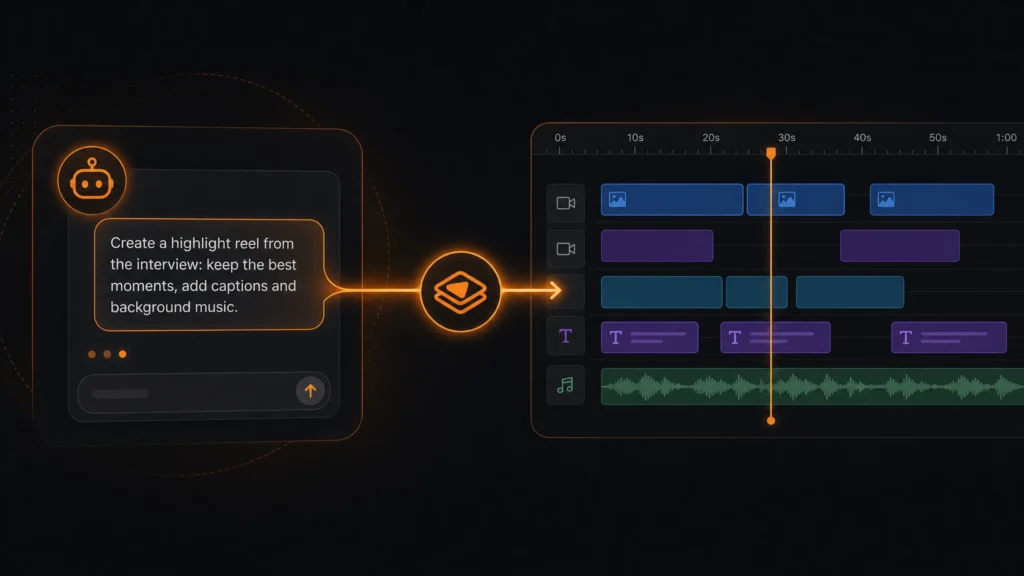
What if you could ask Claude (or any other AI agent) to make you a video — not just write the script, but actually generate it, edit the timeline, add sound effects, fix the pacing, and hand you back a finished, ready-to-post short? That’s what the Motionlaps MCP server does.
MCP stands for Model Context Protocol — an open standard that lets AI agents like Claude connect directly to external tools and apps, instead of just chatting about them. With Motionlaps’ MCP server connected, your agent isn’t guessing how video editing works from a text description. It’s calling the same tools our own video editor uses, on your actual account, on your actual project.
What can an agent actually do?
Basically everything you can do by hand in the Motionlaps video editor:
- Generate a video from scratch — give it a script or a topic, and it can kick off a full UGC talking-avatar video: voiceover, lip-synced avatar, captions, all of it.
- Edit an existing project’s timeline — insert, move, resize, split, or delete clips; reorder overlay tracks; adjust transitions and Ken Burns pan/zoom movement.
- Clean up raw footage — detect and ripple-remove silent gaps from a talking-head recording, the same way our built-in silence-removal tool works.
- Add sound design — pull from a curated, mood-tagged sound-effect library and drop stings, risers, or notification dings at an exact timestamp; add fades or full volume-automation curves so music swells or ducks under narration.
- Source B-roll — search royalty-free stock photos and video straight from the agent, and import a result into your media library with one call.
- Generate and place media — AI images, image-to-video animation, scene narration, or upload your own files.
- Check its own work — pull up a real, temporary preview link showing the actual rendered composition (not just a description of it) before calling the job done.
- Trigger the final render and hand you back a finished video URL.
All of this runs through the exact same backend the web editor uses, so nothing an agent does is a “special path” — it’s subject to the same credit costs and plan limits as if you’d clicked the buttons yourself.
Why this is different from “just asking ChatGPT for video ideas”
A normal chat with an AI can help you brainstorm a script. It can’t touch your actual project, your actual timeline, or your actual media library — it has no way to reach into an app and do something. MCP closes that gap. Your agent gets a defined set of real, callable actions (create a project, insert a clip, set a transition, render the video) instead of just producing text you’d have to translate into clicks yourself.
In practice, that means you can describe an edit in plain language and the agent just does it:
“Take my last UGC video, remove the dead air in the first 10 seconds, add a whoosh transition sound on scene 3, and fade the background music out over the last 2 seconds.”
No manual timeline scrubbing required.
Setting it up
You’ll need three things: an API key, a Motionlaps-aware agent (Claude Desktop, Claude Code, Cursor, or any other MCP-capable client), and about two minutes.
1. Generate an API key
Go to your API Keys settings page and create a new key. It’s shown to you exactly once, so copy it somewhere safe right away.
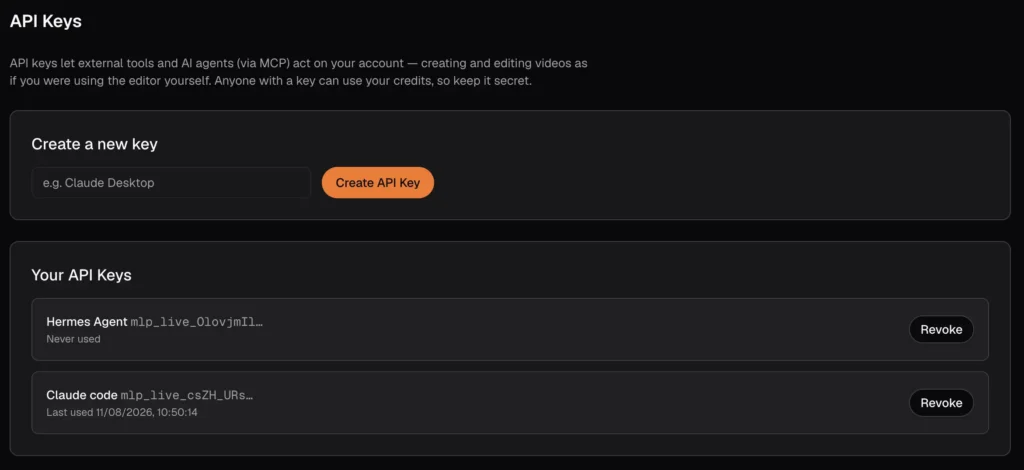
Treat this key like a password. Anyone holding it can act as you on your account and spend your credits. One key works across all of your projects, so there’s no need to generate a new one per project.
2. Connect your agent
The MCP endpoint is:
https://motionlaps.ai/api/mcpIt authenticates with a standard bearer token — send your key as:
Authorization: Bearer mlp_live_...Exact setup depends on which agent you’re using. A couple of common examples:
Claude Code:
claude mcp add --transport http motionlaps https://motionlaps.ai/api/mcp \
  --header "Authorization: Bearer mlp_live_..."
Any MCP client that supports remote HTTP servers with custom headers:
{
  "mcpServers": {
    "motionlaps": {
      "type": "http",
      "url": "https://motionlaps.ai/api/mcp",
      "headers": { "Authorization": "Bearer mlp_live_..." }
    }
  }
}
If your client only supports local (stdio) MCP servers, bridge it with the mcp-remote package — it forwards a local stdio connection to any remote HTTP MCP server, including ours.
3. Try it
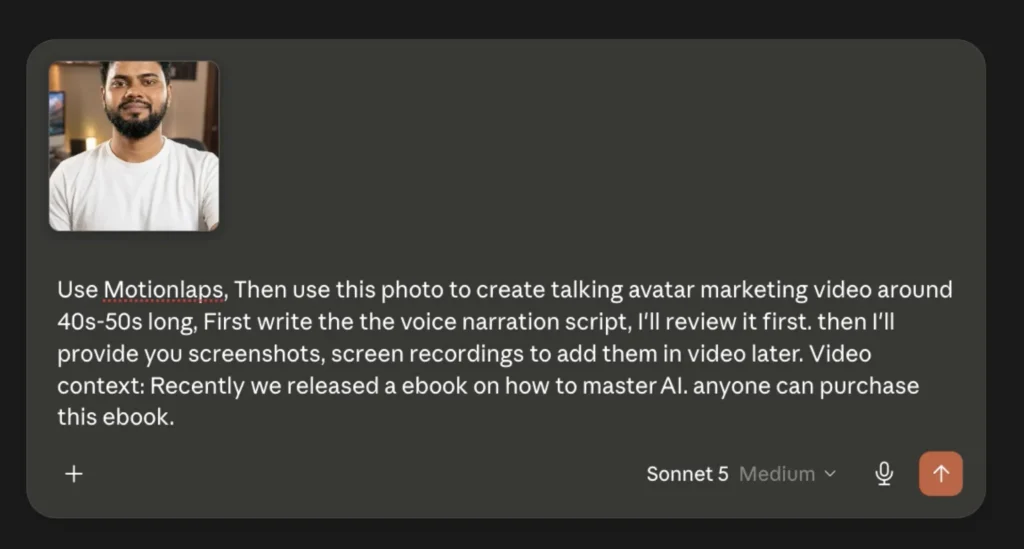
Once connected, just talk to your agent normally:
“Create a UGC video from this script: [paste script]. Use an avatar that fits a tech-product tone.”
“Show me the current timeline for project X.”
“Add a tension riser sound effect that builds into the reveal at 0:14.”
“Generate a preview link so I can see how it looks right now.”
The agent figures out which tools to call and in what order — you don’t need to know the tool names.
A quick look under the hood
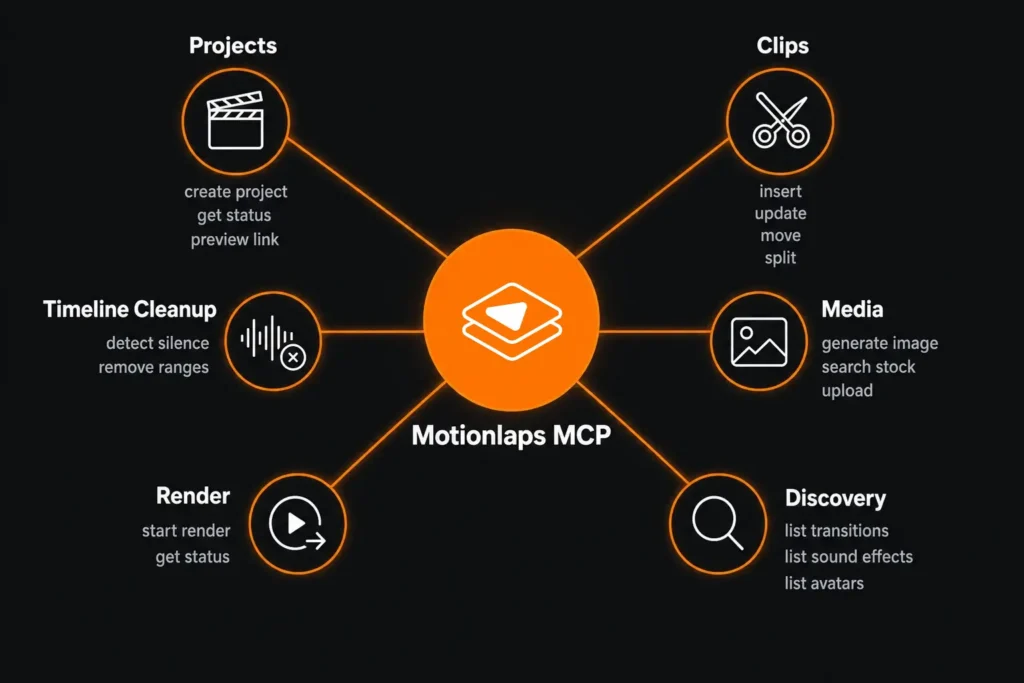
For the curious (or the technically inclined), the tool set is organized into a few groups:
- Projects — create, check status, read the full timeline, get a live preview link, update project settings (title, aspect ratio, music, voice, captions).
- Clips — insert, update, delete, split, move, and bulk-edit timeline clips.
- Timeline cleanup — silence detection and ripple removal.
- Media — generate images, animate images to video, generate narration, search stock footage, upload your own files, browse your media library.
- Render — trigger and poll the final export.
- Discovery — read-only lookups so the agent always uses real, valid values instead of guessing — available transitions, camera movements, sound effects, avatars, caption styles, and AI models.
Every mutating action re-checks the current state of your project before applying itself, so it stays in sync even if you’re editing the same project by hand in the browser at the same time.
Is it safe?
The MCP server runs on the same infrastructure, the same permission checks, and the same credit accounting as the rest of Motionlaps — an agent can only ever act as the account whose API key it was given, and only within that account’s own projects and media. The one thing to be careful with is the key itself: keep it private, and revoke it from the API Keys settings page if you ever suspect it’s been exposed.
Get started
If you already use an MCP-capable AI agent for coding or research, adding Motionlaps takes about the same two minutes as adding any other MCP server — and it turns “describe the video you want” into an actual finished export.
Generate your key at motionlaps.ai/settings/api-keys and give it a try.