The 12 Best Free Online Screen Recorders for Creators in 2026
 Mahmudul Hasan
In the fast-paced world of short-form content, capturing your screen quickly and reliably is non-negotiable. Whether you're creating a tutorial for TikTok, a gameplay highlight for YouTube Shorts, or a product demo for your social media feed, the right tool makes all the difference. Hunting for the best free online screen recorders can be a frustrating process, filled with hidden watermarks, restrictive time limits, and clunky software. This guide cuts through that noise. We’ve done the hands-on testing to bring you a definitive list of the top platforms that are truly free and genuinely useful.
This is more than just a list; it's a practical resource designed for creators. For each tool, you’ll find a concise summary, key features, honest pros and cons, and specific, actionable use-case scenarios. We pinpoint which recorders excel for quick captures, which offer basic editing, and what to watch out for regarding privacy and export options. For example, a marketing agency might use Loom for quick, asynchronous client feedback on a design mockup, while an educator might use Screencastify to create a library of Google Classroom tutorials. Understanding specific platform rules like how to record your Skype calls is also essential for compliance and quality.
Ultimately, our goal is to streamline your entire production workflow. We’ll show you how to leverage these free recorders to capture your raw footage and then seamlessly import it into an AI-powered editor like MotionLaps to generate professional, engaging videos in a fraction of the time. This article will help you find the perfect recorder to capture your ideas, create compelling content, and conquer your production goals without spending a dime.
1. Panopto Express
Panopto Express stands out as one of the best free online screen recorders for its unparalleled ease of use and professional-grade output. It operates entirely within your browser, eliminating the need for downloads, installations, or even an account creation. This frictionless approach makes it ideal for creators who need to capture high-quality footage immediately without any setup hurdles. It’s a powerful tool for recording lectures, tutorials, or gameplay sessions without intrusive branding.
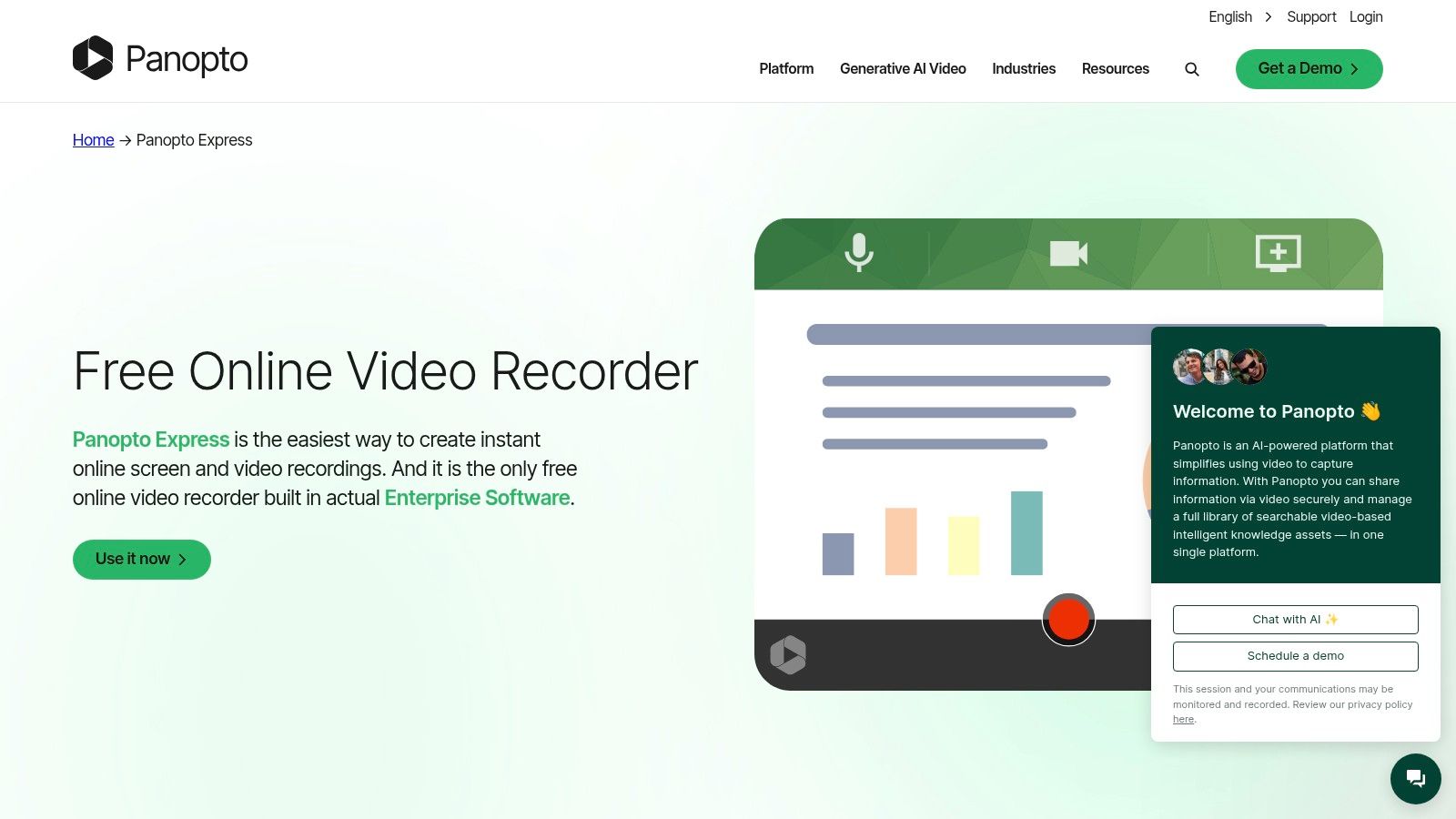
The platform’s core strength lies in its simplicity and powerful multi-source recording capability. You can simultaneously capture multiple screens, webcams, and microphone inputs, a feature rarely found in free, browser-based tools. Panopto then produces a clean, watermark-free MP4 file, a crucial benefit for creators who want full control over their content’s final appearance. While its interface is more functional than flashy, it gets the job done efficiently.
Key Features & Workflow
- Best For: Creators needing a quick, no-frills tool for capturing high-quality, unbranded source material for later editing.
- Privacy & Watermarks: Completely free of watermarks. Since no account is needed, your recordings are private and saved locally unless you choose to share them.
- Export Options: Save directly to your computer as an MP4 or upload to YouTube and Google Classroom.
- Practical Use Case: A freelance developer needs to record a bug report. They open Panopto Express, capture their screen and microphone audio demonstrating the issue, and download the clean MP4. The entire process takes less than five minutes, and the resulting file can be easily shared via Slack or email for the development team to review.
| Feature Analysis | Rating | Notes |
|---|---|---|
| Ease of Use | ⭐⭐⭐⭐⭐ | Truly zero-friction; just open the site and press record. |
| Editing Tools | ⭐☆☆☆☆ | None available. All editing must be done in a separate application. |
| Output Quality | ⭐⭐⭐⭐☆ | Excellent 1080p MP4 output, perfect for professional use. |
| Ads/Watermarks | ⭐⭐⭐⭐⭐ | Completely clean output with no branding or time limits. |
Website: https://www.panopto.com/record/
2. Microsoft Clipchamp (online screen & camera recorder)
Microsoft Clipchamp integrates a powerful in-browser screen recorder with a surprisingly robust video editor, making it an excellent all-in-one solution. As a web-based tool that comes pre-installed on Windows 11, it’s particularly convenient for users within the Microsoft ecosystem. It allows for simultaneous screen and webcam recording, and unlike purely capture-focused tools, it lets you immediately jump into editing your footage without exporting to another app.
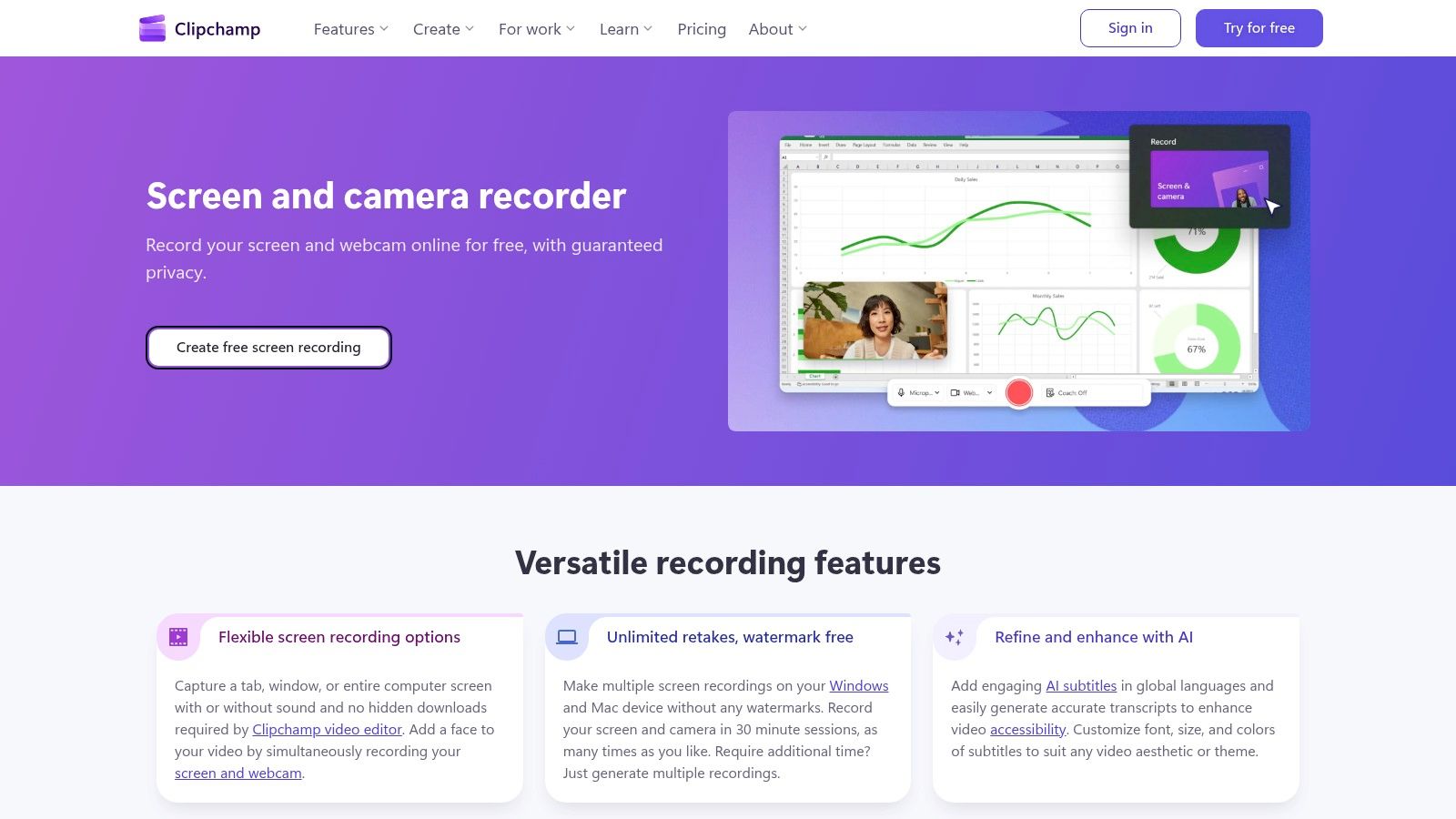
The platform’s major advantage is its built-in suite of editing tools available on the free tier. After recording, you can trim clips, generate auto-captions, and apply basic effects, all without a watermark on the final export. While the free plan has a 30-minute recording limit per video, this is more than sufficient for creating social media content, product demos, or quick tutorials. This seamless capture-to-edit workflow is what makes Clipchamp one of the best free online screen recorders for creators who need to publish quickly.
Key Features & Workflow
- Best For: Windows users and Microsoft 365 subscribers who want a single tool for both screen capture and basic video editing.
- Privacy & Watermarks: No watermarks on exports, even on the free plan. Recordings are processed in-browser and require a Microsoft account to use.
- Export Options: Export watermark-free 1080p MP4 files directly to your computer or share via integrations like OneDrive, Google Drive, and TikTok.
- Practical Use Case: A small business owner creates a short product demonstration video. They use Clipchamp to record their screen and webcam simultaneously. Immediately after, they use the built-in editor to trim the start and end, add auto-captions for accessibility, and export a polished, watermark-free 1080p video ready for their YouTube channel.
| Feature Analysis | Rating | Notes |
|---|---|---|
| Ease of Use | ⭐⭐⭐⭐☆ | Very intuitive, especially for those familiar with Microsoft products. |
| Editing Tools | ⭐⭐⭐⭐☆ | Excellent for a free tool; includes timeline editing, trimming, and auto-captions. |
| Output Quality | ⭐⭐⭐⭐☆ | Crisp, watermark-free 1080p output is standard on the free plan. |
| Ads/Watermarks | ⭐⭐⭐⭐⭐ | Completely free of watermarks, but premium features are upsold in the interface. |
Website: https://clipchamp.com/en/screen-recorder/
3. Loom
Loom has established itself as a leader in asynchronous video messaging, making it one of the best free online screen recorders for collaborative work. It excels at a rapid capture-and-share workflow, allowing users to record their screen and webcam, and instantly get a shareable link. This eliminates download and upload times, making it perfect for quick feedback, bug reports, and team communication where speed is more critical than high-fidelity production.
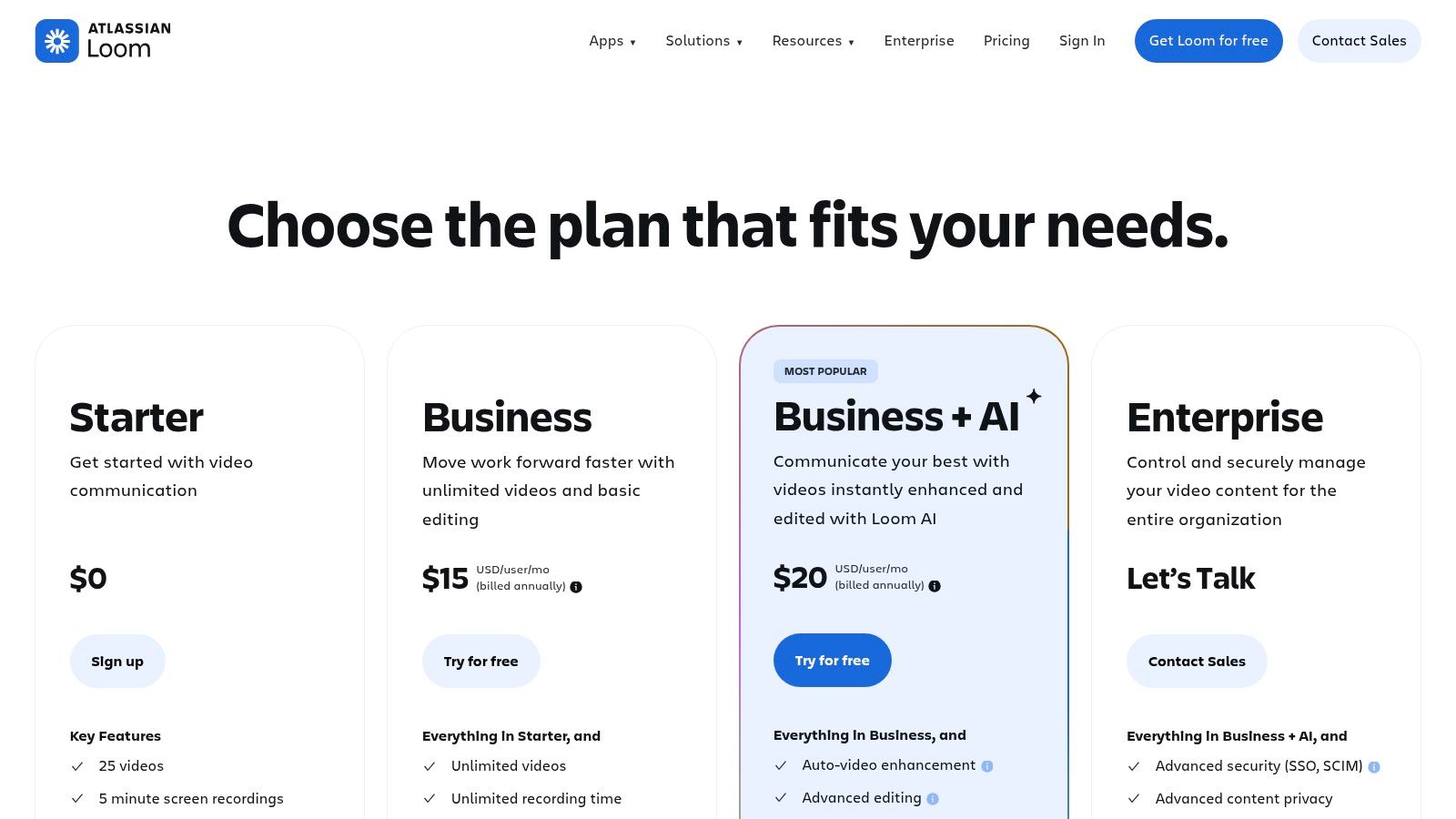
While its free plan has notable limitations, such as a 5-minute recording cap and 720p resolution, its core offering is incredibly polished. The platform includes viewer insights, commenting features, and automatic transcriptions in over 50 languages, adding significant value for team-based projects. The wide adoption of Loom means most collaborators can view and interact with videos without any friction.
Key Features & Workflow
- Best For: Teams and individuals needing an ultra-fast way to create and share short-form video messages, tutorials, or feedback.
- Privacy & Watermarks: Videos are hosted on Loom and shared via a link, with no watermarks. Privacy settings can be adjusted per video.
- Export Options: Download as an MP4, though the primary workflow is sharing the instant Loom link.
- Practical Use Case: A project manager needs to give feedback on a website design to a remote developer. They record a 3-minute Loom video, highlighting specific elements with their cursor and explaining changes. They paste the instant link into their project management tool. The developer can watch it immediately, see the exact issues, and even leave time-stamped comments on the video.
| Feature Analysis | Rating | Notes |
|---|---|---|
| Ease of Use | ⭐⭐⭐⭐⭐ | Exceptional capture-to-share speed. Just press record and share the link. |
| Editing Tools | ⭐⭐☆☆☆ | Basic trimming is available. Most features are behind the paid plan. |
| Output Quality | ⭐⭐☆☆☆ | Limited to 720p on the free plan, which may not be suitable for all professional uses. |
| Ads/Watermarks | ⭐⭐⭐⭐☆ | No watermarks, but the free plan is limited to 25 videos and 5 minutes per video. |
Website: https://www.loom.com/pricing
4. ScreenPal (formerly Screencast-O-Matic)
ScreenPal, widely known by its former name Screencast-O-Matic, is a veteran in the screen recording space, offering a robust platform tailored for education and training. It provides a reliable web-based launcher and optional desktop apps, making it a versatile choice for users who need a bit more than just basic capture. Its free version is a great entry point, offering unlimited recordings, albeit with some limitations.
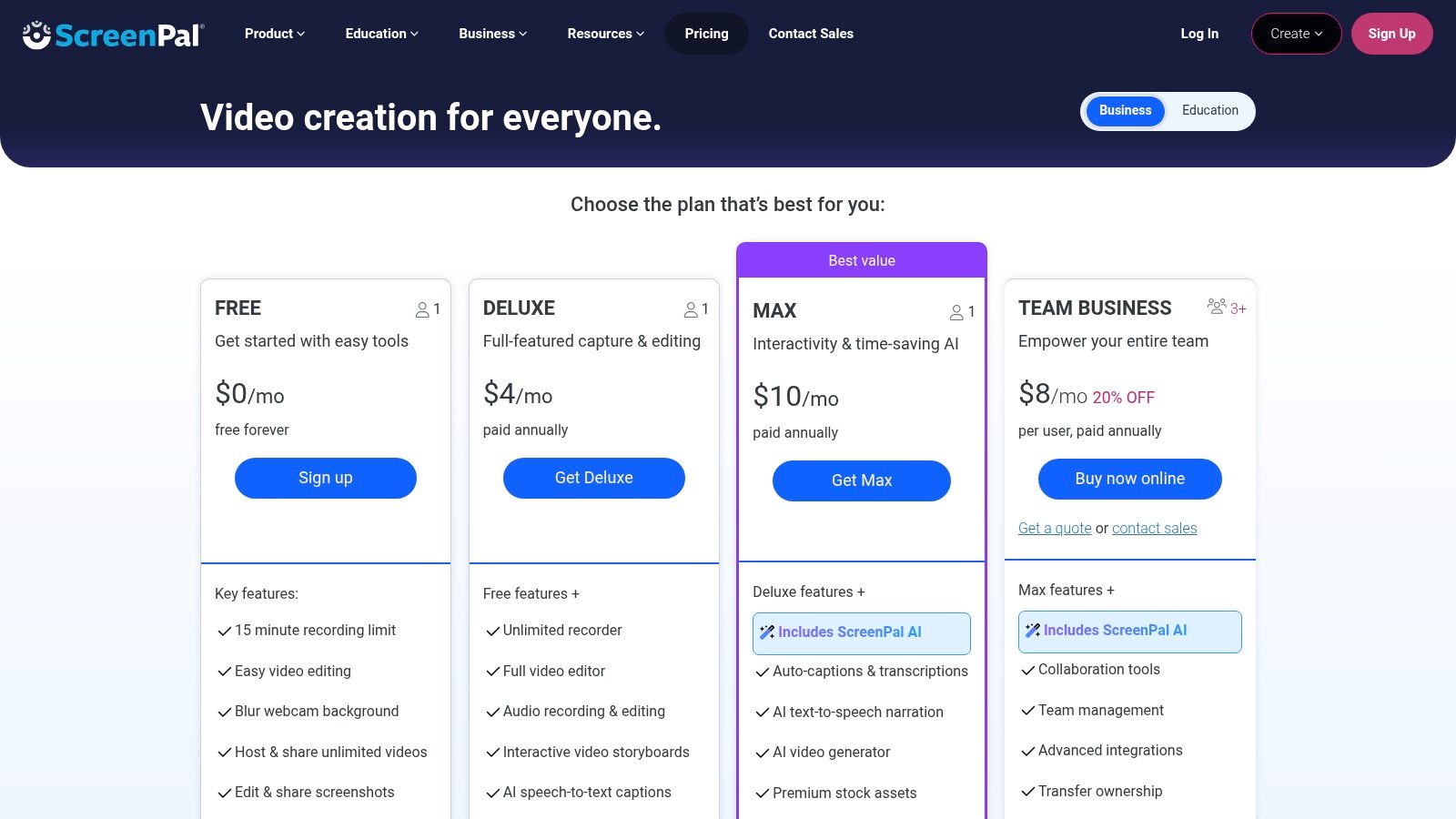
The platform shines with its integrated approach, combining recording with a capable editor and hosting options even at the free tier. While the free plan does impose a 15-minute recording limit and adds a watermark, it's an excellent tool for creating shorter instructional videos or tutorials. For those who anticipate needing more features down the line, ScreenPal offers one of the most affordable and feature-rich upgrade paths available, making it a scalable solution.
Key Features & Workflow
- Best For: Educators, trainers, and creators making short-form instructional content who may want to upgrade to a powerful, low-cost editor later.
- Privacy & Watermarks: The free version includes a ScreenPal watermark on all exported videos. Recordings can be saved locally or hosted on their platform.
- Export Options: Save to your computer as an MP4, AVI, or FLV file, or upload directly to ScreenPal, YouTube, or Google Drive.
- Practical Use Case: A corporate trainer needs to create a 10-minute tutorial on a new software for their team. They use ScreenPal to record the steps, then use the free built-in editor to trim out a mistake. They upload the final watermarked video directly to their company's shared Google Drive, providing an effective training resource without any budget spend.
| Feature Analysis | Rating | Notes |
|---|---|---|
| Ease of Use | ⭐⭐⭐⭐☆ | The web launcher is simple, but the desktop app offers more depth. |
| Editing Tools | ⭐⭐⭐☆☆ | Basic trim and captioning tools are free; a powerful editor is paid. |
| Output Quality | ⭐⭐⭐☆☆ | Good quality, but resolution is limited in the free version (720p). |
| Ads/Watermarks | ⭐⭐☆☆☆ | A noticeable watermark is present, and the 15-min limit can be restrictive. |
Website: https://screenpal.com/plans
5. Screencastify
Screencastify has established itself as one of the best free online screen recorders, particularly within the education sector, due to its deep integration with the Google ecosystem. Operating primarily as a Chrome extension, it offers a streamlined workflow for users heavily reliant on Chromebooks, Google Drive, and Google Classroom. Its simplicity makes it an excellent choice for creating quick instructional videos, feedback, or presentations without needing to leave the browser environment.
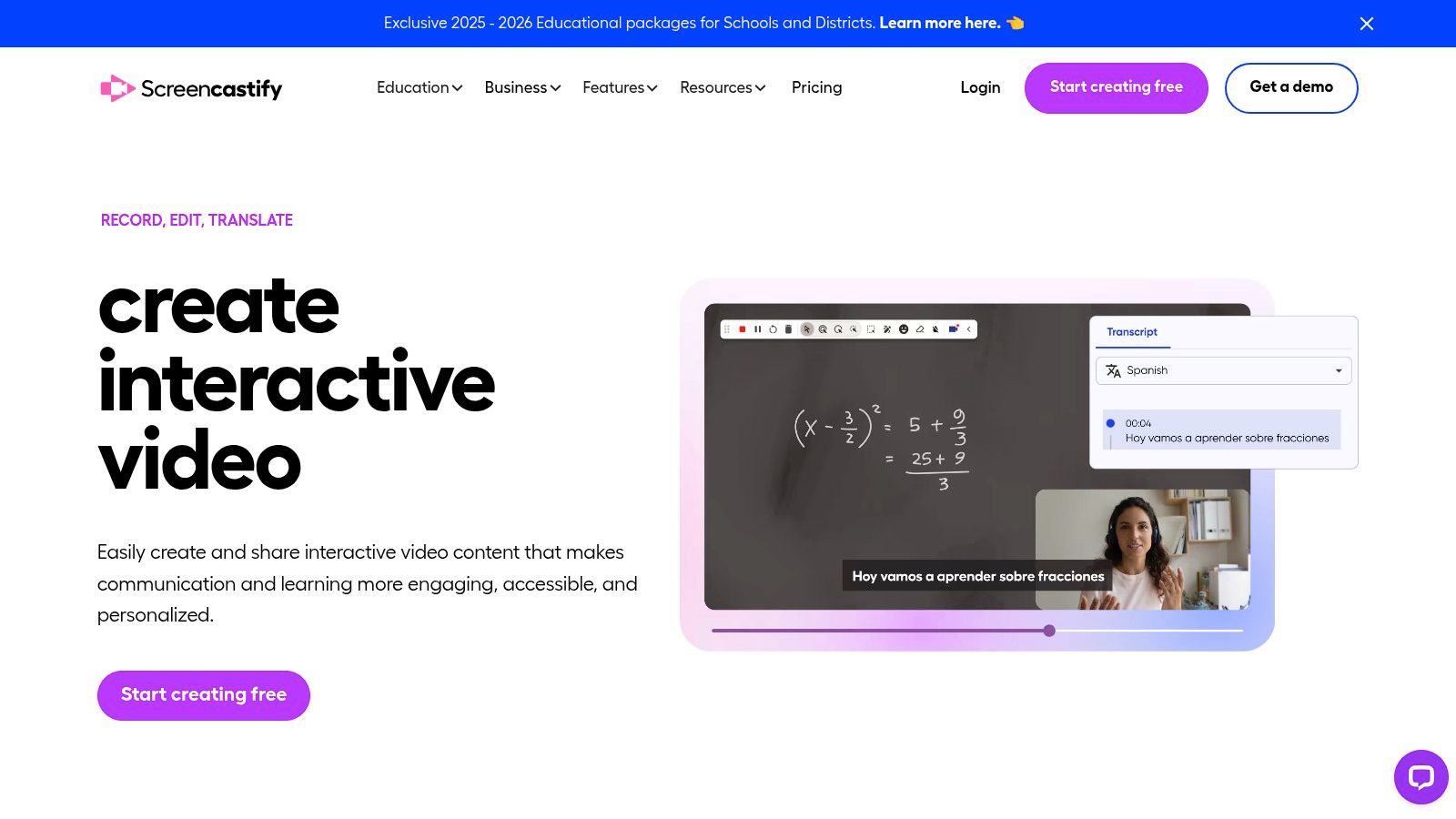
The platform's main advantage is its seamless, one-click sharing to Google Drive, which automatically generates a shareable link. This is ideal for educators and students who need to distribute content quickly. While the free version has notable limitations, such as a cap on the number of stored videos and a watermark on exports, its core functionality is robust for basic recording tasks. The user interface is clean and intuitive, lowering the barrier to entry for new creators.
Key Features & Workflow
- Best For: Educators, students, and Google Workspace users who need a fast, integrated solution for creating and sharing videos.
- Privacy & Watermarks: The free plan adds a Screencastify watermark to all exported videos. Recordings are automatically saved to your connected Google Drive.
- Export Options: Export as MP4, animated GIF, or MP3. Direct sharing to Google Drive, YouTube, and Google Classroom is also available.
- Practical Use Case: A high school teacher creates a 20-minute video explaining a complex math problem. Using the Screencastify Chrome extension, the recording is automatically saved to their Google Drive. They then share the video directly to their Google Classroom as a resource for students who need extra help, all within minutes of finishing the recording.
| Feature Analysis | Rating | Notes |
|---|---|---|
| Ease of Use | ⭐⭐⭐⭐☆ | Very simple as a Chrome extension, with seamless Google integration. |
| Editing Tools | ⭐⭐☆☆☆ | Basic web-based trimming is available; advanced features are paid. |
| Output Quality | ⭐⭐⭐☆☆ | Good 1080p quality, but the watermark is a significant drawback. |
| Ads/Watermarks | ⭐☆☆☆☆ | Watermarked on the free plan. Limits of 10 videos and 30 min/video. |
Website: https://www.screencastify.com
6. VEED
VEED positions itself as more than just a screen recorder; it's an all-in-one video creation suite that happens to have one of the best free online screen recorders integrated into its platform. It is designed for creators who need to move from recording to editing and publishing on social media as quickly as possible. The platform excels at producing social-ready content straight from your browser, making it a favorite for marketers and influencers.
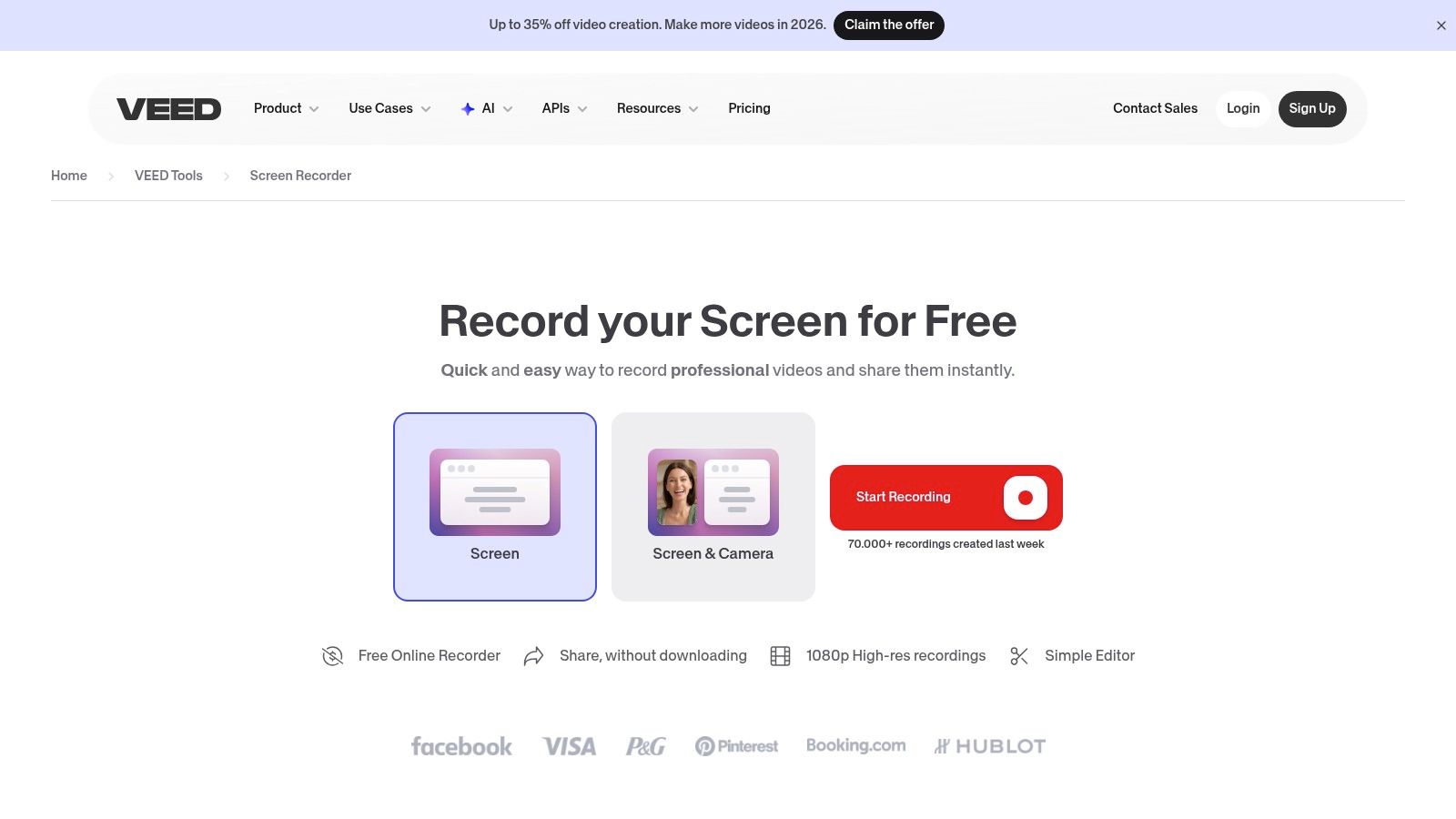
Its main advantage lies in the powerful, AI-driven editing tools that are available immediately after you finish recording. You can automatically generate subtitles, remove background noise with a single click, and even remove filler words like "ums" and "ahs". While the free plan includes a watermark and has limitations on export quality and length, its seamless recording-to-editing workflow is perfect for creating polished short-form content without leaving your browser.
Key Features & Workflow
- Best For: Social media creators who need to quickly record, subtitle, and repurpose content for platforms like TikTok and Instagram Reels.
- Privacy & Watermarks: The free plan adds a VEED watermark to all exported videos. Recordings are stored in your VEED account.
- Export Options: Exports up to 720p with a watermark on the free plan. Paid plans unlock higher resolutions and watermark removal.
- Practical Use Case: A social media manager records a quick "how-to" tip for their brand's Instagram Reels. They use VEED to capture the screen, then immediately use its AI tools to add trendy animated subtitles and clean up the audio. Within 15 minutes, they have a watermarked but engaging video ready to publish directly to their social channels.
| Feature Analysis | Rating | Notes |
|---|---|---|
| Ease of Use | ⭐⭐⭐⭐☆ | Simple to record, but the editor has a slight learning curve. |
| Editing Tools | ⭐⭐⭐⭐☆ | Excellent built-in tools, especially AI subtitles and audio cleanup. |
| Output Quality | ⭐⭐☆☆☆ | Free plan is limited to 720p, which is a significant drawback. |
| Ads/Watermarks | ⭐☆☆☆☆ | A prominent watermark is added on the free plan. |
Website: https://www.veed.io/tools/screen-recorder
7. Vidyard Free Screen Recorder
Vidyard's Free Screen Recorder is a powerful tool designed with sales and marketing professionals in mind, but its utility extends to any creator needing quick, shareable videos. Offered as a Chrome extension and web-based tool, it excels at creating instantly hosted videos with unique sharing links. This removes the friction of downloading and re-uploading, making it perfect for rapid communication, personalized outreach, or quick tutorials.
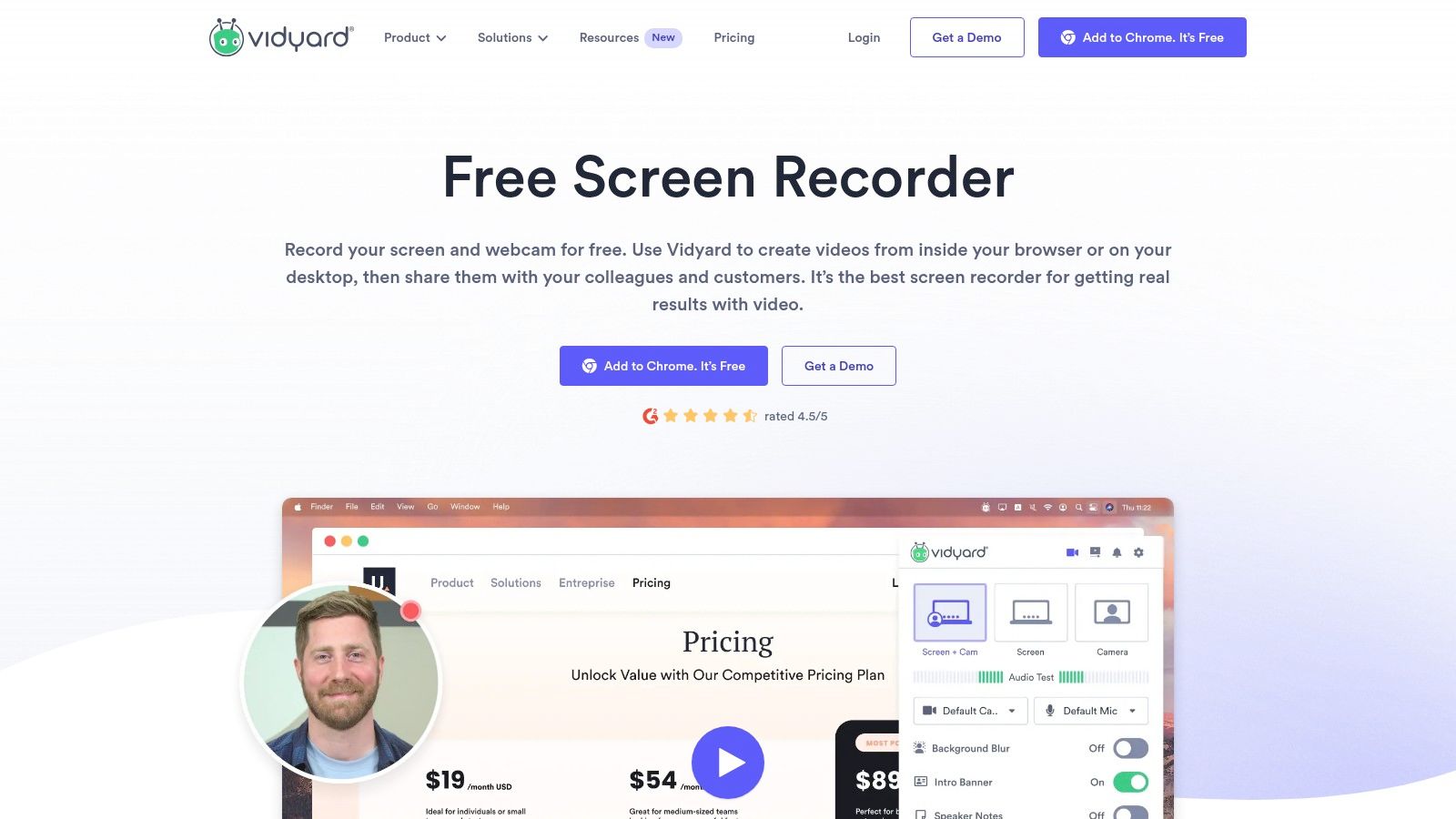
The platform’s standout feature is its built-in analytics, providing insights into who is watching your content and for how long. While the free plan has limitations, such as a cap on the number of videos you can create and store per month (typically around 5), it offers an ad-free viewing experience for your audience. This makes it a professional choice for creators who need to track engagement without the baggage of a complex video hosting platform.
Key Features & Workflow
- Best For: Sales professionals, marketers, and creators who need to share videos quickly and track viewer engagement.
- Privacy & Watermarks: Videos are ad-free but may include subtle Vidyard branding. Recordings are hosted on Vidyard's servers.
- Export Options: Primarily designed for sharing via a link. Downloading an MP4 is possible but not the primary workflow.
- Practical Use Case: A salesperson wants to send a personalized demo to a potential client. They use Vidyard to record a short walkthrough of their software, addressing the client by name. They send the unique Vidyard link in an email. Later, they receive a notification that the client has watched 95% of the video, giving them the perfect signal to follow up with a call.
| Feature Analysis | Rating | Notes |
|---|---|---|
| Ease of Use | ⭐⭐⭐⭐☆ | The Chrome extension is very intuitive for quick captures. |
| Editing Tools | ⭐☆☆☆☆ | No editing tools are included in the free recorder. |
| Output Quality | ⭐⭐⭐⭐☆ | Delivers reliable 1080p quality suitable for most use cases. |
| Ads/Watermarks | ⭐⭐⭐☆☆ | Ad-free viewing, but the free plan has strict limits and some branding. |
Website: https://www.vidyard.com/free-screen-record/
8. ScreenApp.io
ScreenApp.io carves out a unique niche among the best free online screen recorders by integrating AI-powered transcription and summarization directly into the recording process. This browser-based tool requires no downloads or installations, offering a straightforward path to capturing screen activity, webcam feeds, and audio. It is particularly well-suited for users who need to not only record content but also quickly generate notes, summaries, or transcripts from their recordings, such as for meetings, lectures, or video analysis.
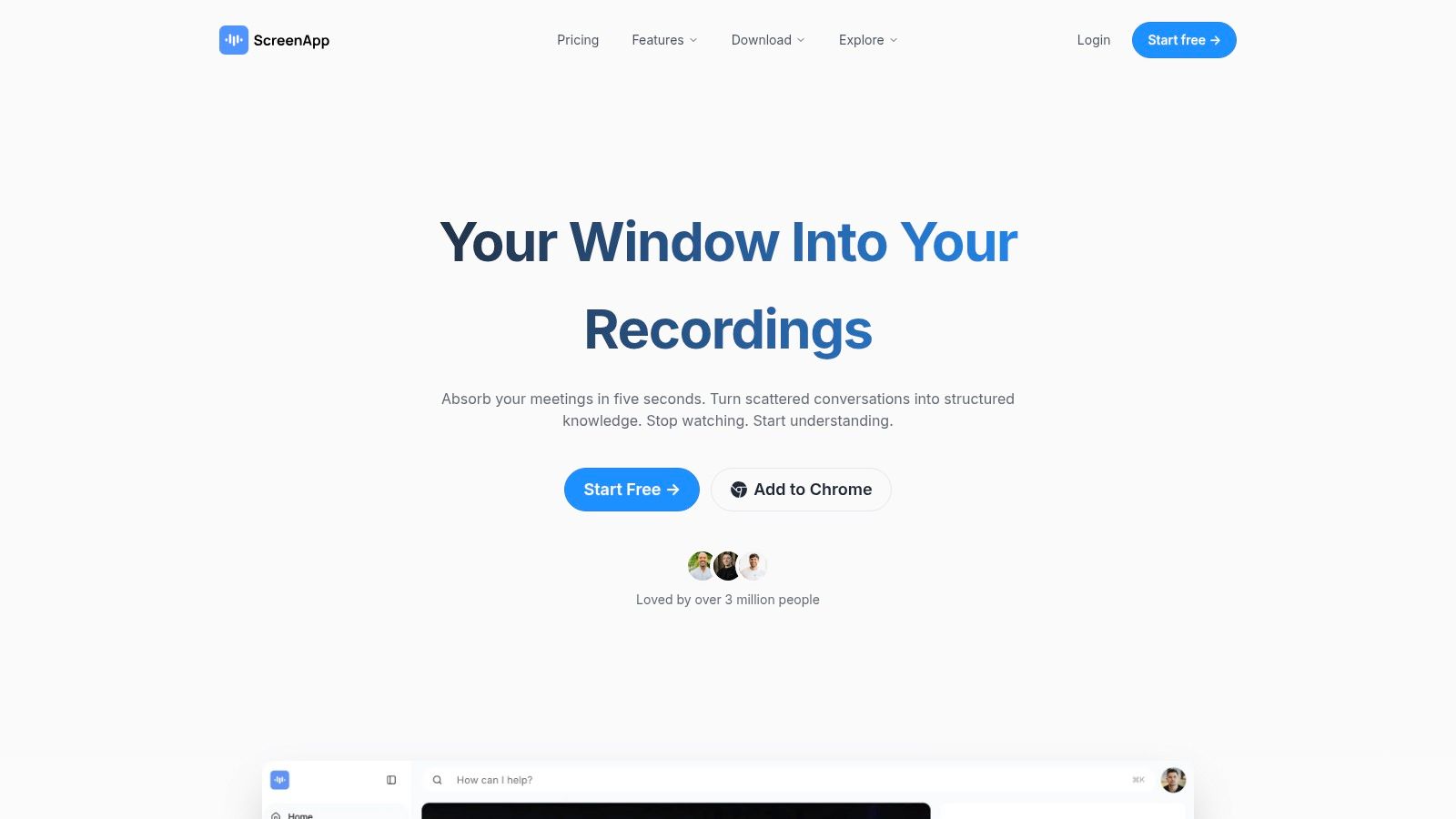
The platform’s standout feature is its ability to automatically transcribe spoken words during a recording, which can then be summarized by its AI. While the free plan is somewhat limited in the number and length of recordings, it provides a powerful taste of this advanced functionality. This makes it an excellent choice for creators who want to repurpose video content into blog posts or create accessible video descriptions without manual transcription work.
Key Features & Workflow
- Best For: Content creators who need to generate written summaries or transcripts from their video recordings for repurposing or accessibility.
- Privacy & Watermarks: Recordings are watermark-free. An account is required, and while you can download locally, recordings are also stored in the cloud.
- Export Options: Download the video as a clean MP4 file. Transcripts and summaries can be copied or exported separately.
- Practical Use Case: A university student records an online lecture using ScreenApp.io. After the session, the platform automatically generates a full transcript. The student uses the AI summary feature to get the key talking points, then copies the transcript to use as study notes, saving hours of manual note-taking.
| Feature Analysis | Rating | Notes |
|---|---|---|
| Ease of Use | ⭐⭐⭐⭐☆ | Very simple to start recording, though account creation is necessary. |
| Editing Tools | ⭐☆☆☆☆ | No video editing tools are included. |
| Output Quality | ⭐⭐⭐⭐☆ | Provides solid 1080p MP4 output suitable for most online content. |
| Ads/Watermarks | ⭐⭐⭐⭐☆ | No watermarks on video, but free plan has strict limits on recordings. |
Website: https://screenapp.io
9. FlexClip Online Screen Recorder
FlexClip’s Online Screen Recorder is an excellent choice for creators looking for an integrated solution that combines screen capture with a capable online video editor. It’s designed as an all-in-one platform, allowing you to record your screen, webcam, and audio, and then immediately jump into editing without downloading any software. This seamless workflow is perfect for producing marketing clips, social media content, or tutorials that need quick additions like text or music before publishing.

The platform’s strength lies in its end-to-end functionality. While many free online screen recorders only handle the capture process, FlexClip provides a built-in suite of tools to trim clips, add music from its library, overlay text, and apply basic effects. This makes it one of the best free online screen recorders for users who want to produce a finished video within a single browser tab, though the free plan's export resolution is a notable limitation for professional work.
Key Features & Workflow
- Best For: Social media managers and entrepreneurs who need to quickly create and edit simple promotional videos or tutorials without complex software.
- Privacy & Watermarks: The free plan may include a FlexClip intro/outro. Recordings can be edited and stored within your FlexClip account.
- Export Options: Exports as an MP4. The free version is typically limited to a lower resolution like 480p or 720p. Higher resolutions require a paid plan.
- Practical Use Case: A small online shop owner wants to create a quick promotional video for a sale. They use FlexClip to record their website, then use the editor to add text announcing "50% Off!", overlay some upbeat stock music from FlexClip's library, and export the video (with a FlexClip intro) to post on their Facebook page.
| Feature Analysis | Rating | Notes |
|---|---|---|
| Ease of Use | ⭐⭐⭐⭐☆ | The record-and-edit flow is intuitive and straightforward. |
| Editing Tools | ⭐⭐⭐⭐☆ | A strong set of basic editing tools is included directly in the browser. |
| Output Quality | ⭐⭐☆☆☆ | The free plan's resolution (480p/720p) is a significant drawback for professional use. |
| Ads/Watermarks | ⭐⭐⭐☆☆ | A FlexClip intro may be added to free exports, which can feel unprofessional. |
Website: https://www.flexclip.com/tools/screen-recorder/
10. Apowersoft Free Online Screen Recorder
Apowersoft Free Online Screen Recorder has been a reliable choice for years, offering a dependable and straightforward way to capture screen activity directly from your browser. It strikes a good balance between simplicity and functionality, allowing users to record their entire screen, a specific application window, or a single browser tab. This flexibility makes it a solid contender among the best free online screen recorders for creating quick tutorials or software demonstrations.

The platform supports recording system audio, microphone input, and webcam footage simultaneously, which is essential for creating engaging content. A standout feature for a browser-based tool is its real-time annotation capability, allowing you to draw shapes, add text, and use pointers during the recording. While some advanced features may prompt the installation of a small launcher, the core functionality remains accessible online, providing a quick start for most recording needs. This tool is a great asset in any video marketing strategy for small businesses.
Key Features & Workflow
- Best For: Users who need basic real-time annotation features without installing a full desktop application.
- Privacy & Watermarks: The free online version does not add watermarks or impose hard time limits, a significant plus for creators.
- Export Options: Save recordings to your local disk in various formats (MP4, WMV, AVI, etc.) or upload them directly to platforms like YouTube and Vimeo.
- Practical Use Case: An IT support specialist is guiding a colleague through a complex software installation. They start an Apowersoft recording and use the real-time annotation tools to draw arrows and circles on the screen, visually guiding the colleague through each step. They then save the watermark-free video as a future training asset.
| Feature Analysis | Rating | Notes |
|---|---|---|
| Ease of Use | ⭐⭐⭐⭐☆ | Very intuitive to start, though a one-time launcher download may be needed. |
| Editing Tools | ⭐⭐☆☆☆ | Limited to real-time annotations. No post-recording editing is available online. |
| Output Quality | ⭐⭐⭐⭐☆ | Offers good quality HD recordings suitable for most online content. |
| Ads/Watermarks | ⭐⭐⭐⭐⭐ | No watermarks or intrusive ads on the free online tool. |
Website: https://www.apowersoft.com/free-online-screen-recorder
11. WeVideo Online Screen Recorder
WeVideo positions itself as more than just a recorder; it's an integrated, cloud-based video creation suite. This platform is designed for users who need to move seamlessly from recording to editing within a single, collaborative environment. Its strength lies in its ecosystem, which includes templates, stock media, and team-based workflows, making it a strong choice for educational institutions, small businesses, and teams that require a centralized content creation hub.
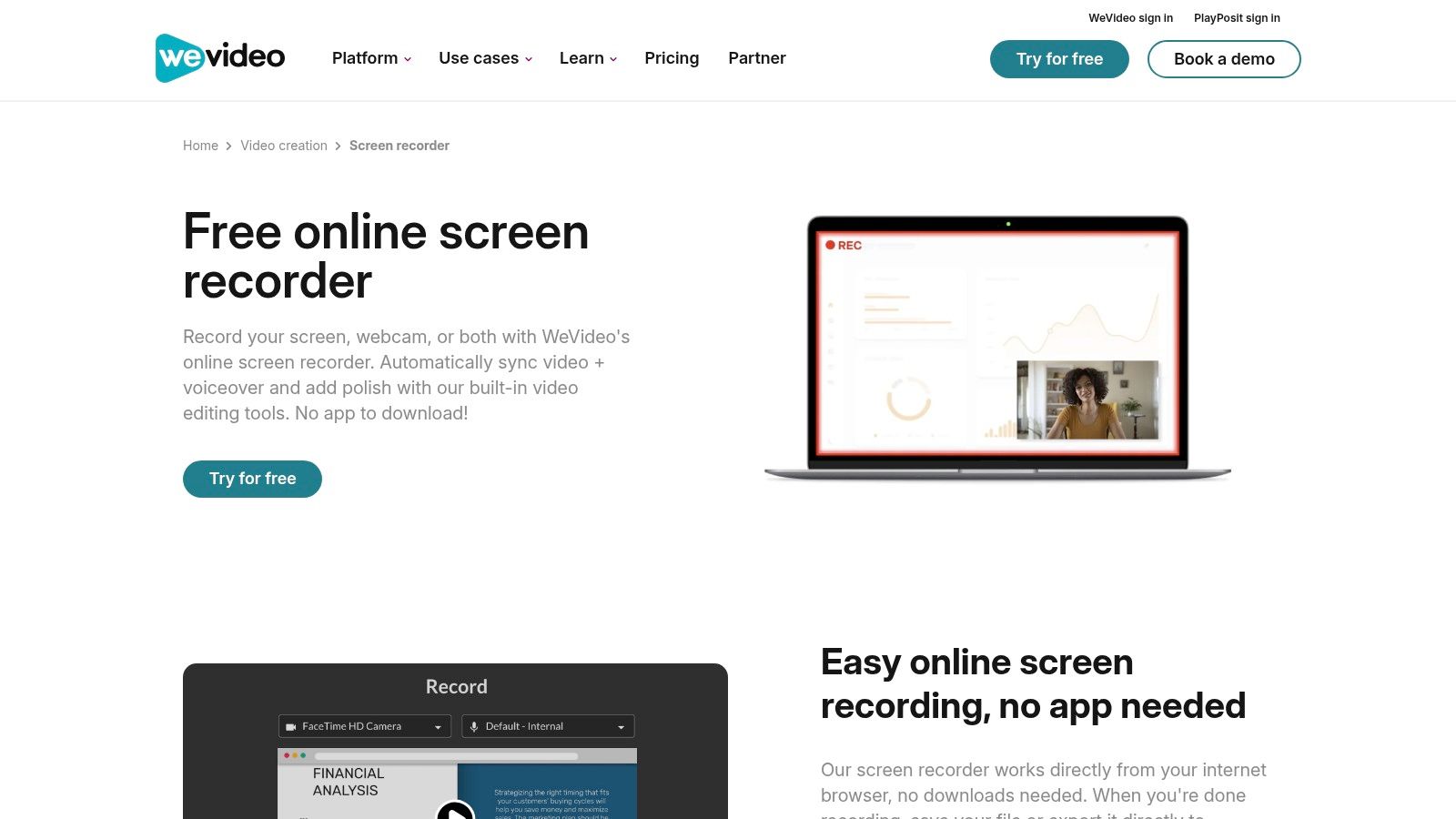
While the screen recording function is a gateway to its editor, the free plan has significant limitations. Users are restricted to a very small amount of monthly publishing time (around five minutes) and a maximum resolution of 480p, with a mandatory watermark on all exports. WeVideo shines brightest with a paid subscription, unlocking its powerful cloud editing tools and collaborative features, but it's less ideal for creators seeking a truly free, high-quality recording solution.
Key Features & Workflow
- Best For: Educational users and business teams who plan to upgrade for a full cloud-based editing and collaboration suite.
- Privacy & Watermarks: The free plan adds a WeVideo watermark to all exported videos. Projects are stored in the cloud.
- Export Options: Publish directly to social media platforms, YouTube, or export to cloud storage like Google Drive.
- Practical Use Case: A student group needs to collaborate on a video project. They use WeVideo's free plan to each record their portion of the presentation. They can all access the recorded files in the shared cloud project, but they will need to upgrade to a paid plan to combine them and export a final video without severe limitations.
| Feature Analysis | Rating | Notes |
|---|---|---|
| Ease of Use | ⭐⭐⭐⭐☆ | The recorder is simple to start, but the full platform has a learning curve. |
| Editing Tools | ⭐⭐⭐⭐☆ | Excellent cloud-based editor, but most features require a paid plan. |
| Output Quality | ⭐⭐☆☆☆ | Limited to 480p on the free plan, which is not suitable for professional use. |
| Ads/Watermarks | ⭐☆☆☆☆ | Mandatory watermarks and very strict export time limits on the free version. |
Website: https://www.wevideo.com/video-creation/screen-recorder
12. RecordCast
RecordCast finds its place among the best free online screen recorders by uniquely combining a browser-based recorder with a lightweight, integrated video editor. This all-in-one tool is perfect for users who need to make quick trims or add simple text overlays without exporting to another application. It operates directly in your browser, allowing you to capture and polish your recordings in one streamlined, private workflow without mandatory account creation or software installation for basic use.
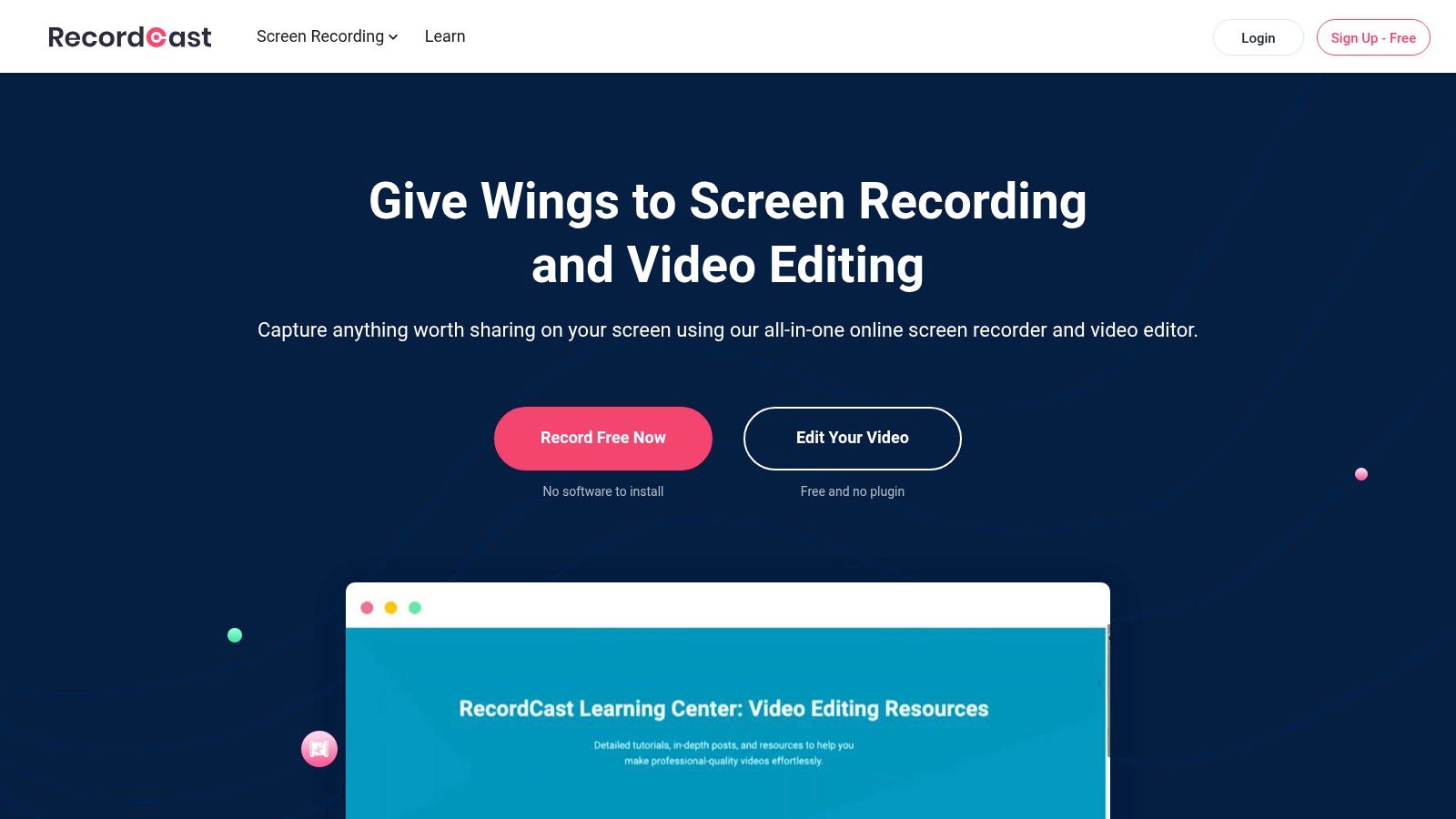
The platform’s key advantage is its balance of simplicity and functionality. While many free recorders only offer raw capture, RecordCast provides essential post-production tools. You can trim unwanted sections, add background music, or place text elements on your video immediately after recording. The final output is completely watermark-free, ensuring your content looks clean and professional, making it an excellent choice for quick tutorials or reaction videos.
Key Features & Workflow
- Best For: Creators who need to perform basic edits like trimming or adding text immediately after recording, without leaving the browser.
- Privacy & Watermarks: No watermarks on recordings. The local editing workflow means your files remain private on your computer.
- Export Options: Download the final edited video directly to your computer as an MP4.
- Practical Use Case: A YouTube creator is making a software review video. They use RecordCast to capture their screen and webcam. After recording, they drag the clip into the built-in editor, trim the beginning where they were setting up, add a title card with the software's name, and export a clean, watermark-free MP4 ready for their final edit in a more advanced program.
| Feature Analysis | Rating | Notes |
|---|---|---|
| Ease of Use | ⭐⭐⭐⭐☆ | Very intuitive; the combined record-and-edit flow is seamless. |
| Editing Tools | ⭐⭐⭐☆☆ | Good for basic trims and text, but lacks advanced features. |
| Output Quality | ⭐⭐⭐⭐☆ | Provides reliable 1080p video quality suitable for most uses. |
| Ads/Watermarks | ⭐⭐⭐⭐⭐ | Completely free of watermarks, ads, and branding on exports. |
Website: https://www.recordcast.com
Top 12 Free Online Screen Recorders — Feature Comparison
| Product | Core features ✨ | Quality ★ | Price/value ? | Target ? | Best fit / USP ? |
|---|---|---|---|---|---|
| Panopto Express | Browser-based recorder; multi-screen/webcam; clean MP4 | ★★★★ | ? Free — no sign-up, no time limit | ? Educators & trainers | ? No-install, watermark-free exports |
| Microsoft Clipchamp | In-browser recorder + editor; trimming & AI subtitles | ★★★★ | ? Free (30 min captures); extra with M365 | ? Windows / Microsoft 365 users | ? Built-in editor + M365 integration |
| Loom | Fast capture→share; instant links; transcriptions | ★★★★ | ? Free (25 vids/user, 5 min cap) | ? Teams & async communicators | ? Instant sharing with viewer insights |
| ScreenPal (Screencast-O-Matic) | Recorder + editor; captions; desktop apps | ★★★★ | ? Free (15 min, watermark); low-cost upgrades | ? Classrooms & creators | ? Reliable editor with budget upgrades |
| Screencastify | Chrome-first recorder; Drive & Classroom sharing | ★★★ | ★★★ | ? Free (10 vids, 30 min; watermark) | ? K–12 & Chromebook users |
| VEED | Recorder + powerful online editor; AI cleanup & subs | ★★★★ | ? Free (watermark); paid for full features | ? Social creators & repurposers | ? AI subtitles + social aspect presets |
| Vidyard Free | Recorder + hosted library & viewer analytics | ★★★ | ? Free (limits ~5 vids/month) | ? Sales & marketing teams | ? Built-in analytics for outreach |
| ScreenApp.io | Browser recorder with AI transcripts & summaries | ★★★★ | ? Free (3 recordings, up to ~45 min) | ? Professionals needing notes/transcripts | ? Integrated AI transcripts & summaries |
| FlexClip | In-browser recorder + full editor (text/music/subs) | ★★★★ | ? Free (resolution/feature limits) | ? Marketers & short-form creators | ? End-to-end capture→edit→export workflow |
| Apowersoft Free Online | Records screen/window/tab + system audio & webcam | ★★★★ | ? Free (some modes prompt desktop app) | ? General users & trainers | ? System-audio capture + annotation tools |
| WeVideo | Recorder tied to cloud editor with templates & brand kits | ★★★★ | ? Free (limited publish time, watermark) | ? Education, SMBs & teams | ? Cloud collaboration & template library |
| RecordCast | Free recorder with lightweight editor; local downloads | ★★★ | ? ? Free — no watermark, local saves | ? Casual creators & privacy-minded users | ? No-watermark, private local workflow |
From Raw Capture to Viral Content: Your Next Steps
We've explored a comprehensive landscape of the best free online screen recorders, each offering a unique set of features tailored for different creators. From the minimalist, watermark-free power of Panopto Express and RecordCast to the collaborative strengths of Loom and the all-in-one editing capabilities of Microsoft Clipchamp, the right tool for your initial capture is certainly on this list. Your choice ultimately hinges on your specific, immediate needs: Is it a quick, no-fuss recording, or do you require integrated webcam overlays and basic trimming from the get-go?
The central takeaway is that a free online screen recorder is an essential, but foundational, piece of your content creation puzzle. It's the starting line, not the finish line. While tools like VEED or ScreenPal offer impressive in-built editing suites, they can still demand significant manual effort to transform a simple screen capture into a polished, high-engagement video formatted for platforms like YouTube Shorts or TikTok. The real challenge for modern creators isn’t just capturing content; it's producing it efficiently and at a scale that keeps your audience engaged day after day.
Making the Right Choice: A Needs-Based Summary
To distill our findings, let's categorize the top contenders based on the most common creator needs. This will help you pinpoint the perfect starting tool for your workflow.
- For Pure, High-Quality Capture (No Frills): If your goal is to grab the cleanest possible footage with no watermarks or time limits to then import into a dedicated editor, your top choices are Panopto Express and RecordCast. They excel at providing pristine source material without forcing you into a specific editing ecosystem.
- For Quick Edits and Annotation: When you need to trim clips, add simple text overlays, or highlight specific areas directly after recording, ScreenPal and Microsoft Clipchamp are excellent. Their integrated editors provide a seamless transition from capture to basic post-production.
- For Collaboration and Asynchronous Communication: For creators working in teams, providing feedback, or creating tutorial snippets for clients, Loom and Vidyard are unparalleled. Their strengths lie in shareability, commenting features, and viewer analytics, making them ideal for communication-focused video.
- For All-in-One, Template-Based Creation: If you want a single platform that handles both recording and more advanced, template-driven video creation, VEED and FlexClip are strong contenders. They are designed to be a one-stop shop, though their free tiers often come with limitations like watermarks or lower export resolutions.
The Strategic Workflow: From Capture to Creation Engine
The most successful short-form creators don't just have good ideas; they have an optimized system. The bottleneck for growth is rarely the screen recording itself. It's the time-consuming process of scripting, finding visuals, recording voiceovers, adding music, and editing everything into a cohesive, fast-paced narrative. This is where your strategy must evolve beyond just using one of the best free online screen recorders.
Consider this powerful workflow:
- Capture with Precision: Use a tool like Panopto Express to record your screen in high definition, completely free of watermarks. Focus only on capturing the raw visual information you need.
- Automate with Intelligence: Instead of spending hours in a traditional video editor, import that raw clip directly into an AI-powered creation platform like MotionLaps.
- Generate and Refine: Let the AI handle the heavy lifting. MotionLaps can analyze your content, generate a compelling script, create a lifelike voiceover, select appropriate B-roll and music, and assemble a dynamic, engaging video in minutes.
This approach transforms your role from a hands-on video editor into a creative director. You guide the AI, approve the creative direction, and publish the final product, multiplying your output without sacrificing quality. By pairing a simple, effective capture tool with a sophisticated AI creation engine, you build a content pipeline that is truly scalable, freeing you to focus on what matters most: your content strategy and community growth.
Ready to stop editing and start creating at scale? Take the high-quality footage you captured with one of these free tools and see what true automation can do. Upload your clip to MotionLaps and watch our AI transform it into a viral-ready video with scripts, voiceovers, and visuals in minutes. Experience the future of content creation with MotionLaps today!