Turn Image into Illustration: A Practical Guide to AI and Manual Methods
 Mahmudul Hasan
You have a great photo, but you need something with more artistic flair—an illustration. The good news is you have two powerful paths. You can take the fast AI-powered route for nearly instant, stylized results, or you can get hands-on with manual software like Photoshop for total creative freedom. This guide will walk you through both, with practical examples to get you started.
Why Bother Turning a Photo into an Illustration?
Let's be clear: turning a photo into an illustration isn't just a cool effect. For brands and creators, it’s a strategic advantage. In a digital world saturated with generic stock photos, a unique illustration is a powerful way to stop the scroll. It allows you to build a distinct visual identity without needing a fine arts degree or a massive budget for a custom illustrator.
With AI tools becoming so accessible, this process is now democratized. Anyone can transform a simple photo into a detailed comic book panel or a clean, minimalist graphic. This opens up a world of possibilities for content creation.
The Real-World Edge of Illustrated Content
The magic here is in the blend of speed and impact. Imagine you're a small e-commerce business. Instead of using the same old product photos as everyone else, you could turn them into stylized illustrations for a social media campaign.
Case Study: "The Artisan Coffee Co."
A small online coffee retailer was struggling to stand out. They started using AI to turn their standard product shots of coffee bags into charming, hand-drawn style illustrations. They used these new visuals in their social media ads and on their product pages. The result? A reported 15% increase in click-through rates and a significant boost in brand recall. Customers found the visuals more engaging and memorable than standard photography.
This isn't an isolated case. Some retailers who use AI to transform product photos into more artistic styles have reported conversion rate bumps of up to 40%. If you want to dive deeper into how AI is shaking up digital art, the team at SuperAGI has some great insights.
In this guide, we'll explore two practical workflows:
- The AI Workflow: Ideal for speed and consistency. Perfect for social media managers, marketers, or anyone needing to create a large volume of visually consistent assets quickly.
- The Manual Approach: For designers, artists, and perfectionists who require pixel-level control to craft a truly unique, signature style for key projects.
By the end of this guide, you won't just know how to use these tools; you'll understand when to use them. You'll intuitively know when to fire up an AI for a quick, effective illustration and when it’s time to open Procreate or Adobe Illustrator for a project that demands a human touch.
The AI Workflow: Turning Photos into Illustrations in Minutes
Using AI to turn a photo into an illustration is more than just clicking a "generate" button. It’s a repeatable process that, once mastered, can help you create a week's worth of consistently styled visuals in less than an hour. The process begins not with the AI, but with your source photo.
The impact of this technology is massive. An estimated 34 million AI-generated images are created every single day. Marketers are seeing conversion rates jump by 27% when they personalize ad creative with these types of visuals. It’s a powerful tool for leveling the playing field.
This diagram breaks down the basic path from your original photo to the final illustrated piece.
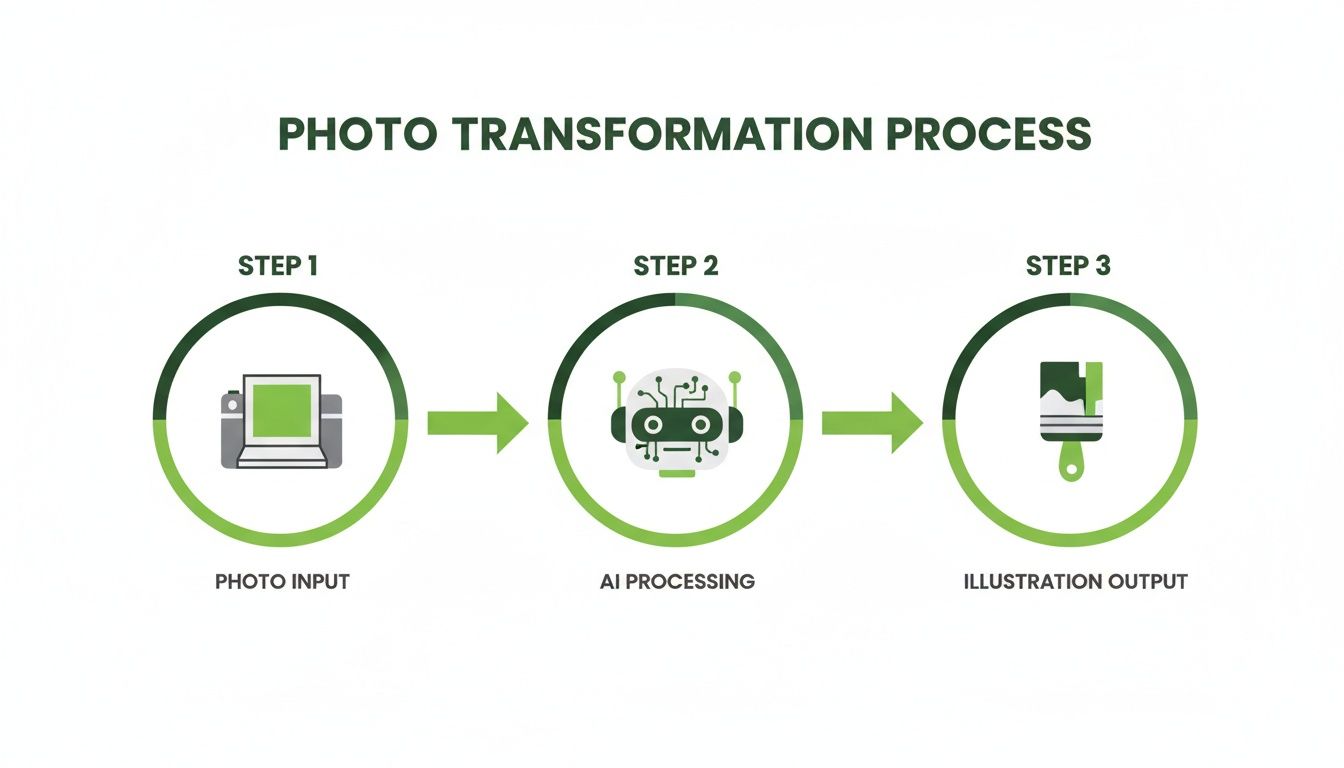
As you can see, the AI acts as the creative engine, interpreting your photo and your instructions to produce something new.
Choosing the Right Photo is Half the Battle
Let me be blunt: your final illustration will only ever be as good as the photo you start with. An AI can’t magically fix a terrible image; it just reinterprets what it sees. As the old saying goes, garbage in, garbage out.
So, what makes a "good" source photo? Look for these three things:
- A Clear Subject: The person, product, or object you want to illustrate should be in sharp focus. If the AI can't tell what it's looking at, you'll get a muddy, confusing result.
- Good Lighting: Photos with strong, defined shadows and bright highlights give the AI much more information to work with. This creates depth and detail. Flat, evenly lit photos almost always lead to flat, boring illustrations.
- Simple Composition: An image with one clear focal point is way easier for an AI to understand than a busy, cluttered scene. Start simple.
Actionable Tip: Before uploading your photo, do a quick edit. Increase the contrast slightly and crop out any distracting background elements. This five-minute prep can dramatically improve the quality of your AI-generated illustration.
Comparing Popular AI Image-To-Illustration Tools
With so many tools on the market, picking the right one can feel overwhelming. Each has its own strengths, whether you're a seasoned pro or just starting out. Here’s a quick breakdown to help you decide where to begin.
| Tool | Best For | Key Feature | Learning Curve |
|---|---|---|---|
| Midjourney | Highly artistic and stylized, photorealistic outputs | Community-driven platform (Discord), strong aesthetics | Moderate |
| Stable Diffusion | Ultimate control and customization (open-source) | Fine-tuning with ControlNet, local installation | High |
| DALL·E 3 | Ease of use and natural language understanding | Integration with ChatGPT, great for beginners | Low |
| Phone Apps | Quick edits and social media-friendly styles | One-click filters and predefined art styles | Very Low |
Ultimately, the best tool is the one that fits your workflow. I recommend playing around with a couple to see which one "clicks" for you and gives you the style you're after.
Writing Prompts That Actually Work
Got your photo? Great. Now comes the fun part: prompt engineering. This is where you tell the AI exactly what you want it to do. When using image-to-image features in tools like Midjourney or Stable Diffusion, you're essentially pairing your photo with a text command. For those looking for a more automated approach, many web-based AI image generators can also simplify this process.
Here’s a basic but incredibly effective prompt formula you can steal and adapt:
[URL of your image] + [Description of the subject] + [Artistic style] + [Extra details]
Practical Example: Let's say you're a travel blogger and you have a photo of yourself standing in front of the Eiffel Tower.
- A vague prompt:
Turn this photo into an illustration.This will produce a generic, unpredictable result. - A powerful prompt:
https://your.image.url/eiffel.jpg, photo of a woman with brown hair smiling in front of the Eiffel Tower, vintage travel poster illustration, art deco style, warm golden hour lighting, bold lines, textured paper.
See the difference? The second prompt gives the AI specific, actionable instructions. It clarifies the subject, defines the exact art style, and even adds notes on color and lighting. If you want to explore more platforms and their capabilities, our guide on AI content creation tools is a great place to start.
Here are a few other prompt ideas to get your creative juices flowing:
- For a Clean, Vector Look:
...minimalist vector art, flat design, bold outlines, limited color palette. - For a Gritty, Comic Book Vibe:
...comic book style, cel-shaded, dynamic action lines, Ben Day dots. - For a Softer, Painterly Effect:
...digital painting, visible brushstrokes, impressionist style, textured canvas.
By getting a handle on photo selection and prompt writing, you build a reliable system. You'll be able to produce high-quality, on-brand illustrations every single time, turning what used to be a time-consuming manual task into a speedy production line for your content.
Mastering Manual Illustration Techniques
While AI offers incredible speed, there are times when you need absolute control. When the goal is to turn an image into an illustration with your unique, signature feel, you need to go manual. This approach puts you in the driver's seat, allowing for pixel-perfect adjustments and a level of creative expression AI can't quite replicate yet.
Let's walk through three powerhouse workflows for illustrating by hand. Each one gives you a totally different result, from textured digital paintings to clean, scalable vectors.
Photoshop: The Painterly Approach
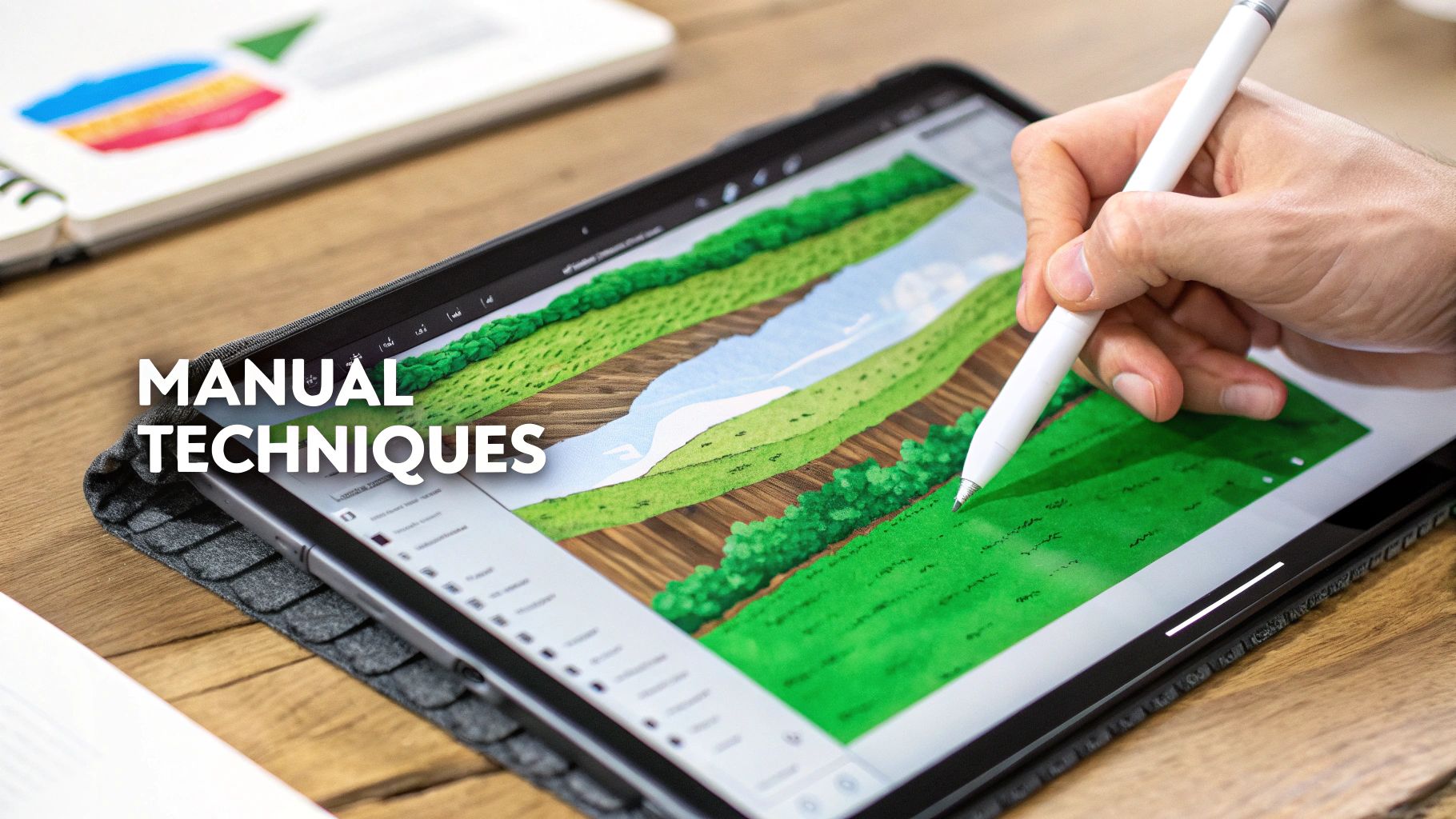
For illustrations that feel artistic, textured, and full of life, Adobe Photoshop is my go-to. The basic idea is simple: use your original photo as a guide and essentially trace over it on different layers, building a new piece of art with digital brushes.
Actionable Workflow:
- Set Up: Import your photo onto a base layer and reduce its opacity to about 30-40%.
- Line Art: Create a new layer above it. Using a hard-edged brush, trace the main outlines of your subject. This will be your guide.
- Block in Colors: Create another layer underneath your line art layer. Use a larger brush to block in the main flat colors.
- Add Shadows & Highlights: Create new "clipping mask" layers above your color layer to add shadows and highlights without painting outside the lines.
- Texture: Finally, add a texture layer (like paper or canvas) on top and set the blending mode to "Overlay" or "Soft Light" to give it an organic feel.
Think of it like using tracing paper when you were a kid, but with an infinite toolkit. Each layer is a fresh sheet, so you can go wild with colors and textures without ever messing up your original line work.
Illustrator: For Clean Vector Graphics
When your illustration absolutely has to be scalable—for a logo, a website icon, or any kind of branding—then Adobe Illustrator is the tool for the job. Unlike Photoshop, which works with pixels, Illustrator creates vector graphics from mathematical paths. This means you can blow them up to the size of a billboard with zero loss in quality.
I generally use two methods here:
- Image Trace: This is a fantastic starting point. The feature automatically converts a standard image (like a JPG) into vector paths. But be warned, you’ll almost always need to jump in and clean up the result—simplifying paths and tweaking colors to get it looking sharp.
- The Pen Tool: For absolute precision, nothing beats manually tracing the photo with the Pen Tool. It gives you complete control over every single curve and line, leading to a crisp, professional illustration that is 100% yours.
This workflow is perfect when you're aiming for that clean, corporate look or for stylized character art that will be used across a bunch of different platforms.
Procreate: For That Hand-Drawn Feel
If you love the organic feel of drawing on paper, Procreate on an iPad is a total game-changer. It perfectly bridges the gap between traditional art and digital tools with an incredibly intuitive, touch-based interface that just feels natural. The process is a lot like the Photoshop method—using layers to trace over a reference photo.
Where Procreate really shines, though, is in its ability to capture that hand-drawn aesthetic. Its brush engine is incredibly responsive to the Apple Pencil's pressure and tilt, making for expressive, varied line work that feels authentic. Many artists, myself included, will sketch out the initial illustration in Procreate and then export the layers to Photoshop or Illustrator for final polishing. It’s the best of both worlds, giving you the freedom of drawing with the power of professional-grade editing.
How to Choose a Style and Avoid Common Mistakes
Getting a technically perfect illustration is one challenge. Getting one that actually connects with your brand and audience? That’s the real goal. The style you land on—whether it's clean vectors or a playful cartoon—sets the entire tone for your content.
A financial tech company and a children's toy brand shouldn't be speaking the same visual language. Your choice here is critical, and it all comes down to brand alignment.
The right style has to resonate with your target audience. A gritty, comic-book aesthetic might be perfect for a gaming channel, but it would feel completely out of place on a wellness blog. Think about your brand's voice. Is it professional? Quirky? Minimalist? Bold? Let that answer guide your hand.
Aligning Style with Your Brand Voice
Start with a quick brand audit. What are the core values you’re trying to get across?
- For a Corporate or Tech Brand: Clean lines, a limited color palette, and minimalist vector styles are your friends. They communicate professionalism and clarity.
- For a Creator or Influencer: A hand-drawn or painterly style often feels more personal and authentic, which is great for building a stronger connection with your followers.
- For Entertainment or Youth-Focused Content: Go for bright colors, dynamic characters, and playful aesthetics. You need something that grabs attention. Platforms that specialize in different aesthetic choices can be a great starting point, especially for things like unique cartoon illustration styles.
The key is consistency. Once you pick a lane, stay in it. A random assortment of styles just looks unprofessional and confuses your audience, which will only weaken your brand identity over time.
Common Pitfalls and How to Sidestep Them
When you turn an image into an illustration, it’s easy to stumble into a few common traps. The good news? They're just as easy to avoid once you know what to look for.
The biggest shift here is that the cost of bespoke illustrations has essentially dropped to zero thanks to AI. This change alone leads to 34% quicker campaigns, which is a massive advantage when you're trying to keep a steady content schedule on TikTok and YouTube.
AI models have gotten incredibly good, now hitting 82% photorealism. In fact, 74% of professional designers say the outputs require only minimal edits. As a result, 79% of advertisers globally are now comfortable approving AI-generated visuals for major platforms. This turns content creation from a slow, manual chore into a real strategic advantage. You can dive deeper into these AI advancements and their impact on digital media in our guide on AI style transfer techniques.
Before you finalize any illustration, run through this quick mental checklist:
- Does it still look like the subject? Don't let the style overpower the original. Pay close attention to key facial features or product shapes. Likeness matters.
- Is it too cluttered for a small screen? Overly detailed illustrations can turn into a messy blob on a phone. Always think about mobile optimization.
- Is the text legible? If your illustration has text, make sure the contrast and font are crystal clear and easy to read.
- Does it match your existing content? Put it side-by-side with your other visuals. If it sticks out like a sore thumb, you’ll need to tweak the colors or style to create a cohesive look.
Bringing Your Illustrations to Life in MotionLaps
Alright, you've done the hard work and turned a static photo into a fantastic illustration. Now for the fun part: making it move. This is where your new creation goes from being just a cool image to a core part of your video story. Getting it into MotionLaps is simple, but how you prepare the file makes all the difference.
Your main task is getting that illustration from whatever tool you used—be it an AI generator or Photoshop—and into your video project in a clean, flexible format. It all comes down to the export.
Prepping and Exporting Your Artwork
For a professional look, you absolutely need to export your illustration as a PNG file with a transparent background. This is non-negotiable. Why? It gives you the freedom to layer your graphic over any video clip or colored background inside MotionLaps without that ugly, amateur-looking white box framing it.
Resolution is just as important. For vertical videos destined for platforms like TikTok or YouTube Shorts, I always aim for a width of at least 1080 pixels. This ensures your artwork stays sharp and crisp, even on high-resolution phone screens.
Actionable Tip: In Photoshop, use the "Quick Export as PNG" function (File > Export > Quick Export as PNG). In Illustrator, use the "Export for Screens" option and make sure the background is set to transparent. This simple step is the key to professional-looking video graphics.
Assembling Your Video in MotionLaps
With your shiny new PNG file ready, the rest is a breeze. Just upload your custom illustration directly into the MotionLaps editor. Once it’s in, you can use it in a couple of key ways.
Here are the two main roles your illustration can play:
- The Star of the Show: If you're creating faceless content, your illustration can be the main visual. It becomes the anchor for your story, which is perfect for brand explainers, educational snippets, or any narrative-driven video.
- Dynamic B-Roll: You can also slice your illustrations in as engaging B-roll. Use them to break up a talking-head segment, visually emphasize a point you’re making, or just add some extra flair to keep viewers from scrolling away.
The final piece of the puzzle is sound. Inside MotionLaps, you can pair your illustration's vibe with the perfect AI voiceover. A fun, cartoony graphic might call for an upbeat, energetic voice, while a sleek vector illustration would work better with a calm, professional tone. Add some background music that fits the mood, and you’re all set.
If you want to dive deeper into crafting compelling videos, check out our guide on finding the best AI video generator to fit your project's style.
Got Questions? I've Got Answers
Diving into illustration can feel a bit overwhelming, especially with so many tools and techniques out there. Here are my thoughts on a few common questions I hear all the time when people start their journey to turn an image into an illustration.
Should I Start with AI or Traditional Tools like Procreate?
If you're brand new to this and want to see results fast, I'd point you toward AI every time. Tools like Midjourney or even simple phone apps give you that instant gratification. You can test out dozens of styles in the time it takes to make a cup of coffee, which is fantastic for just figuring out what you actually like.
On the other hand, manual tools like Procreate or Adobe Illustrator give you ultimate control, but you've got to be willing to put in the time to learn them. The learning curve is real.
My advice? Start with AI. Play around, find a style that clicks with you, and get a feel for the possibilities. Once you find yourself saying, "I wish I could just tweak this one little thing," that's your cue. It’s the perfect time to start learning the manual tools to get that custom look AI can't quite deliver.
Is It Okay to Use AI Illustrations for My Business?
This is a big one, and the short answer is: it depends. The legal side of things comes down to the terms of service for the specific AI tool you're using.
Most of the big players, like Midjourney and DALL·E 3, give you commercial rights with their paid plans. But—and this is a big but—the laws around AI and copyright are still being written. Before you use an AI-generated image for anything that makes money, whether it's for a client or on your monetized YouTube channel, you absolutely need to read that platform's licensing agreement. Don't just skim it.
How Can I Make Sure All My Illustrations Look Consistent?
Consistency is key to building a recognizable brand or a cohesive project. It's what makes your work look polished and professional, not just like a random jumble of pictures.
-
If you're using AI, the trick is to lock in your variables. Reuse the exact same descriptive phrases in your prompt every single time. For example, always include something like "Japanese ink wash style, muted earth tones, minimalist." If your tool lets you use a seed number, use the same one to get a much more predictable result.
-
If you're going the manual route, your best friend is a personal style guide. It doesn't have to be complicated! Just decide on a specific color palette (with HEX codes), a go-to line weight, and a few textures you'll always use. In Photoshop or Illustrator, you can even create templates or your own custom brush sets. This is a game-changer for keeping everything looking like it belongs together.
Ready to put those new illustrations into motion? With MotionLaps, you can turn your static art into eye-catching videos with AI voices and music in just a few minutes. Give MotionLaps a try and create your first video today.